
Overview
Prospecting turns the business already in your book into a daily to-do list. Every morning Matrix looks across your accounts and opportunities and puts a card in front of you for each one that needs attention: a group due to rebook, a negotiated rate coming up for renewal, a deal that has gone quiet, or an account that is slipping.
Each card says why it is there in plain words, and carries the buttons to act on it without leaving the page.
Cards belong to the property, not to one seller. When anyone at the property snoozes, dismisses or acts on a card, it changes for the whole team.
Where to Find It
- Click Prospecting in the left sidebar (between Leads and Accounts)
- Use the scope selector at the top of Matrix to choose a single property, a portfolio or Global. Prospecting follows the same scope as the rest of Matrix. See Navigating Matrix.
The six most important cards also appear at the top of the Activity tab on your Dashboard. Click View All there to open the Prospecting page in the same scope.
Top Prospecting Today
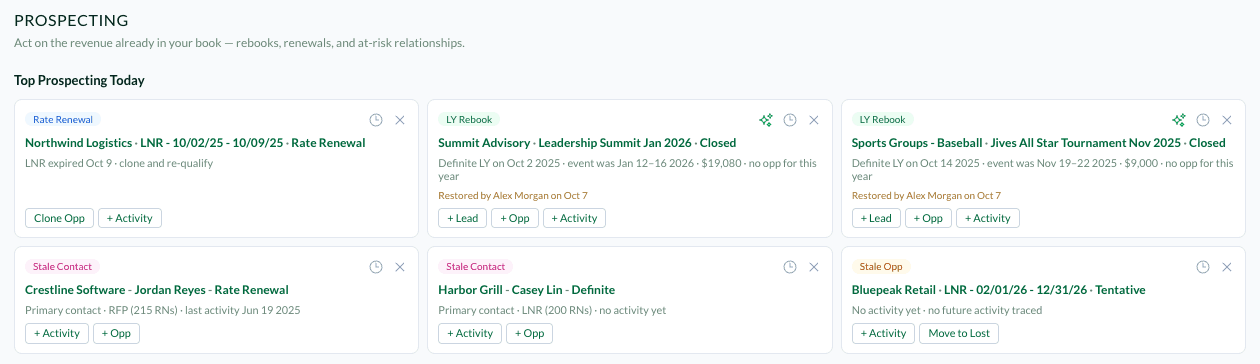
The strip at the top of the page picks the six cards to work first:
- Rate Renewal and LY Rebook cards that are due within 60 days come first, soonest first
- After those, the cards with the biggest opportunities
- No more than two cards of one type, and no more than one card per account
In a portfolio or Global view, it picks the best six across every property in scope.
Browse by Section
Below Top Prospecting Today, the Existing Accounts tab shows its total card count and lists every card in three sections. Click a section to open it.
| Section | Card types |
|---|---|
| Rebook Groups | LY Rebook |
| Stale Opportunities | Stale Opp |
| Corporate Negotiated Prospecting | Rate Renewal, Dormant Account, Stale Contact, RN Shortfall |
Each section shows its count and an info icon that explains it. A section shows 10 cards at a time; click View more for the rest.

The Six Card Types
| Card | When it shows | Buttons |
|---|---|---|
| LY Rebook | A group that usually rebooks every year (for example corporate, education, government, religious, sports or tour groups) moved to Definite or Lost about a year ago, and the account has no group opportunity at the property starting within 30 days of last year's dates, a year on. The card shows from 45 days before the one-year mark until 30 days after it. | + Lead, + Opp, + Activity |
| Stale Opp | An LNR or group opportunity in Prospect or Tentative with no completed activity in 21 days or more, and nothing open or scheduled. An opportunity that never had a completed activity counts from the day it was created. Once the event has ended, it no longer gets a card. | + Activity, Move to Lost |
| Rate Renewal | An LNR in the Rate Renewal stage. Matrix moves a Definite LNR into Rate Renewal 60 days before it ends; see Auto Activities. | Clone Opp, + Activity |
| Dormant Account | An LNR or RFP over 100 anticipated room nights that was Definite in the last 24 months and has ended, where the account has no other open opportunity at the property. | + Lead, Clone Opp, + Activity |
| Stale Contact | The primary contact on a Definite or Rate Renewal LNR or RFP over 100 room nights, with no completed activity in 6 months and nothing scheduled. | + Activity, + Opp |
| RN Shortfall | An account whose running LNRs and RFPs are delivering under 75% of their anticipated room nights, or under 75% of the same months last year, based on the monthly production actuals. See Entering an LNR for how actuals are entered. | + Activity, + Opp |
Reading a Card
Every card shows:
- The type, as a colored label (for example LY Rebook or Stale Opp)
- The account, opportunity and stage, as links that open in a new tab. Stale Contact cards show the account, the contact and the stage instead.
- The reason, for example "LNR expired Oct 9 · clone and re-qualify" or "No completed activity in 148 days · no future activity traced". Hover over a long reason to read all of it.
- Who last changed it, if anyone has, for example "Restored by Alex Morgan on Oct 7"
At the top right of each card are the Snooze (clock) and Dismiss (X) icons. Some LY Rebook, Rate Renewal and Dormant Account cards also show a sparkle icon: click it to open the opportunity's AI Summary.
Cards don't show which property they belong to. In a portfolio or Global view, open the account or opportunity link, or switch to a single property, to see which hotel a card is for.
Acting on a Card
The buttons on a card open the usual Matrix forms with the details already filled in:
| Button | What it opens |
|---|---|
| + Lead | The New Lead form, with the account, property and contact filled in, Repeat Client as the source, and you as the assignee |
| + Opp | A New Opportunity page in a new tab, with the account, contact, opportunity type and property filled in |
| Clone Opp | The Clone Opportunity page in a new tab, to start the next agreement from the current one. See Rate Renewals: Clone, Don't Edit. |
| + Activity | The New Activity form, linked to the opportunity (or the account) and its primary contact |
| Move to Lost | A window to pick a Lost reason |
When you save the lead, opportunity, clone or activity, the card is marked done and leaves the list. If you close the form without saving, the card stays.
Moving a Stale Opp to Lost
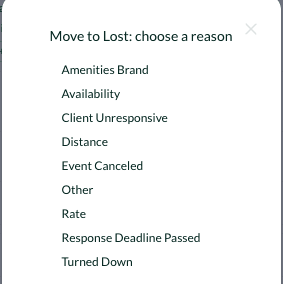
- On a Stale Opp card, click Move to Lost
- Choose a reason: Amenities Brand, Availability, Client Unresponsive, Distance, Event Canceled, Other, Rate, Response Deadline Passed or Turned Down
The opportunity moves to Lost as soon as you click a reason. There is no second confirmation, so pick carefully.
Snoozing, Dismissing and Restoring Cards
Snooze a card
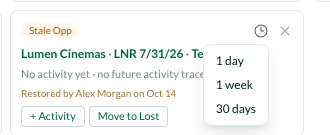
- Click the clock icon at the top right of the card
- Choose 1 day, 1 week or 30 days
The card leaves the list for everyone at the property and comes back when the snooze ends.
Dismiss a card
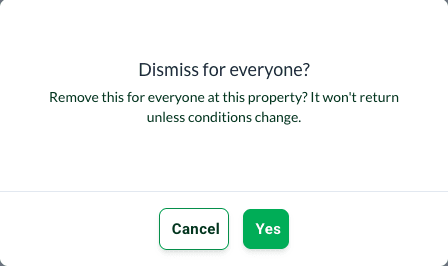
- Click the X at the top right of the card
- Matrix asks Dismiss for everyone? Click Yes to confirm, or Cancel
A dismissed card won't come back unless its conditions change.
Find and restore snoozed or dismissed cards
When a section has snoozed or dismissed cards, a link appears next to its count, for example 1 snoozed or 2 snoozed · 1 dismissed.
- Click the link to see those cards, greyed out, with who snoozed or dismissed them and when
- Click Restore on a card to put it back in the list. It then shows "Restored by" with your name and the date.

How the Cards Update
- Matrix rebuilds each property's cards every morning at 6am property time
- It rebuilds them again about 15 seconds after anyone saves an activity or opportunity at that property, so a card goes away soon after the work that answers it is logged
Who Can Use Prospecting
| Role | What they can do |
|---|---|
| Subscription Admin | See and act on every card |
| Property Admin, Property User | See cards, and act on, snooze, dismiss and restore cards at their properties |
| Viewer | See cards and the snoozed and dismissed lists, with no buttons |
| Leads | No Prospecting page |
See User Roles & Permissions for how roles are set.
Tips
Start the day with Top Prospecting Today. It is on your Dashboard, so it is the first thing you see after logging in.
Snooze, don't dismiss, when the timing is wrong. A snoozed card comes back on its own. A dismissed card only returns if something about the account changes.
Log the activity from the card. Saving from the card clears it for the whole team, so nobody else follows up on the same account.
For working past groups by hand on the Group board, see Prospecting Tips & Tricks: Past Groups.
FAQ
If I snooze or dismiss a card, does it go away for everyone? Yes. Cards belong to the property, so a snooze, dismiss or restore changes the list for everyone at that property, and the card shows who did it and when.
I logged a call but the card is still there. Why? Matrix rebuilds the cards about 15 seconds after an activity is saved, so give it a moment. A Stale Opp or Stale Contact card only clears for a completed activity on that opportunity or contact. Logging the activity from the card's + Activity button clears the card as soon as you save.
Why don't I see Prospecting in the sidebar? Users with the Leads role don't have the Prospecting page. Ask your Matrix admin about your role.
Questions? Email support@m1intel.com