
Overview
Matrix can generate a contract for an Opportunity directly from a template, so you do not have to build one from scratch. The generated document is saved on the Opportunity, where you can send it for electronic signature and track its status.
How to Generate a Contract
- Open the Opportunity
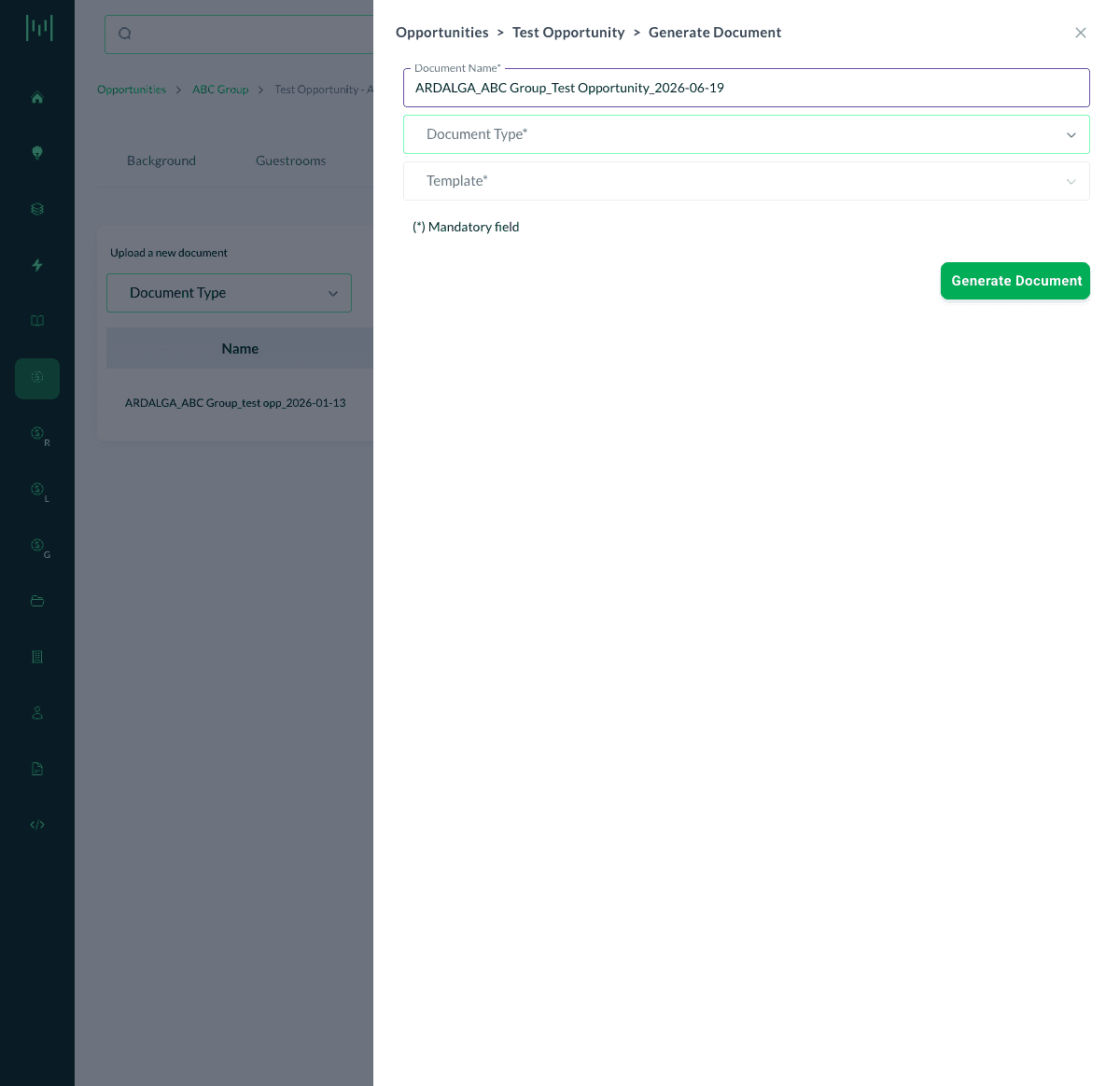
- Click Actions (top right) and select Generate Document
- Confirm or edit the Document Name (Matrix pre-fills it from the property, account, and date)
- Choose the Document Type (for example, Contract)
- Choose the Template
- Click Generate Document
The generated contract opens in a preview, where you can review it and click Send for Signature. It appears on the Documents tab once it has been drafted or sent, not immediately after generating. (See Electronic Signatures within Contracts.)
After It Is on the Documents Tab
Once the contract has been drafted or sent, it appears on the Documents tab, where you can:
- Review the document
- Track its Status and Tracking (for example, sent, signed, or rejected)
- Re-send it or follow up as needed
Related
- How to Duplicate a Contract Template (reuse an existing template)
- How to Upload a Document to an Opportunity (attach an external file instead of generating one)
- Electronic Signatures within Contracts (send the contract for signature)
Questions? Email support@m1intel.com