
Overview
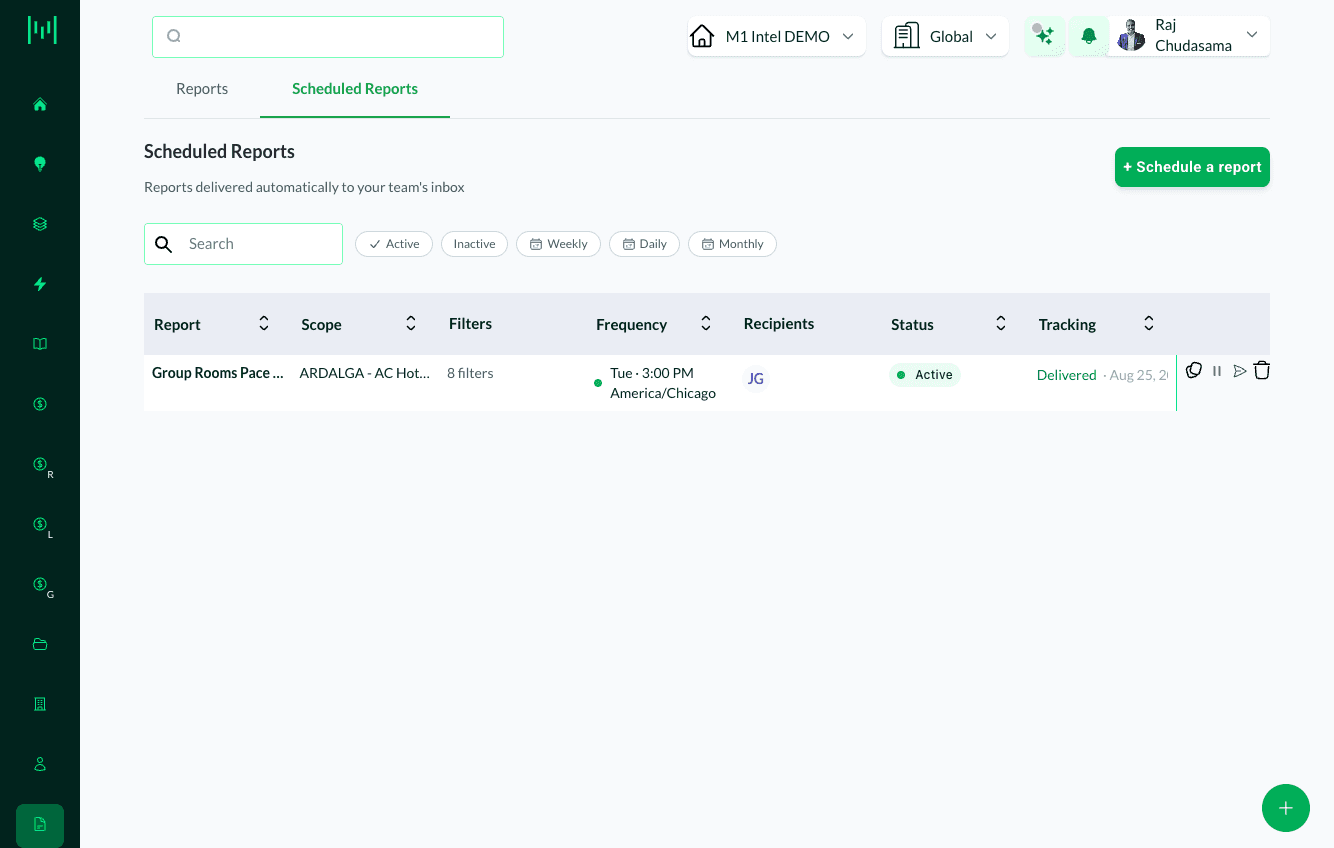
A scheduled report is a Matrix report that sends itself. You pick the report, the scope, the filters, and how often it should go, and Matrix delivers it on that cadence without anyone remembering to run it.
Find it under Reports > Scheduled Reports.
What you can schedule
Three reports can be scheduled today:
- The Sales Readout (see The Sales Readout)
- Group Rooms Pace
- Group Rooms & Events Control (see Group Rooms Pace & Group Rooms and Events Control)
Who receives it
Recipients are Matrix users, chosen from a list. When you set up a schedule you pick the people from your Matrix users, each shown by name and email address.
⚠️ You cannot type in an arbitrary email address. A scheduled report can only go to someone who has a Matrix login. If an owner, an asset manager, or a regional director needs the report, they need a Matrix user account before they can be added as a recipient.
This is the single most common surprise with scheduled reports, so it is worth checking before you promise a report to someone outside the system.
How to schedule a report
- Go to Reports > Scheduled Reports
- Click + Schedule a report
- Choose the Report Type. The filters for that report appear once you have chosen, because each report has its own
- Set the filters and the scope you want: a single property, a portfolio, or your whole subscription
- Under Frequency & Timing, set Repeats (Daily, Weekly, or Monthly), the Time, and confirm the timezone
- Set the Report Window, which is the period the report covers
- Give the schedule a Name. This is what you will see in the list
- Add your Recipients
- Check the Schedule of next 5 sends preview, which shows exactly when the next five will go out
- Save
The Report Window and the Frequency are separate settings. A weekly send of a "last 7 days" window is the common pairing, but nothing stops you scheduling a monthly send of a shorter window. Read the preview before you save.
Managing your schedules
The list shows every schedule with its Report, Scope, Filters, Frequency, Recipients, Status, and Tracking. Use the Search box and the Active, Inactive, Weekly, Daily, and Monthly chips to narrow it down.
The Tracking column tells you whether the last send actually landed, with the date, so you can tell a delivery problem from a setup problem.
Each row carries its own actions:
- Toggle delivery history expands the row to show past sends
- Copy schedule duplicates it, which is the fastest way to build the same report for another property
- Deactivate schedule pauses it without deleting it
- Send now sends it immediately, on top of the normal schedule
- Delete schedule removes it for good
Send now and Delete schedule both ask you to confirm before anything happens.
Best practice
Deactivate rather than delete. If a report is only paused for a season, deactivating keeps the setup and its history. Deleting throws away the filters someone spent time getting right.
Copy for the next property. When several hotels need the same report, build it once and use Copy schedule rather than rebuilding the filters each time.
Check Tracking after the first send. A schedule that saved cleanly can still fail to deliver. The first Tracking entry confirms it is genuinely working.
Questions? Email support@m1intel.com