
Overview
The Account Production report answers one question: are your negotiated accounts actually delivering what they promised? It puts what an account produced this year next to what it produced last year and what you contracted it for, one row per account.
Find it under Reports > Account Production.
This report reads the monthly actuals you record on LNR and RFP opportunities. Until someone enters those actuals, the current-year columns stay blank. See Entering an LNR for where the monthly figures are captured.
What the Report Shows
Each row is one account, rolling up all of that account's qualifying LNR and RFP opportunities. The columns are grouped:
| Group | Columns |
|---|---|
| Account | Name |
| Room Nights | CY RNs, LY RNs, Var, Ant RNs, Var |
| ADR | CY ADR, LY ADR, Var, Ant ADR, Var |
| Revenue | CY Rev, LY Rev, Var, Ant Rev, Var, Trend |
| Activity | Last Activity, Assignee |
CY is the current period, LY is the same period last year, Ant is the anticipated figure from the contract, and each Var is the difference against the column to its left. The Trend column shows the direction of travel at a glance.
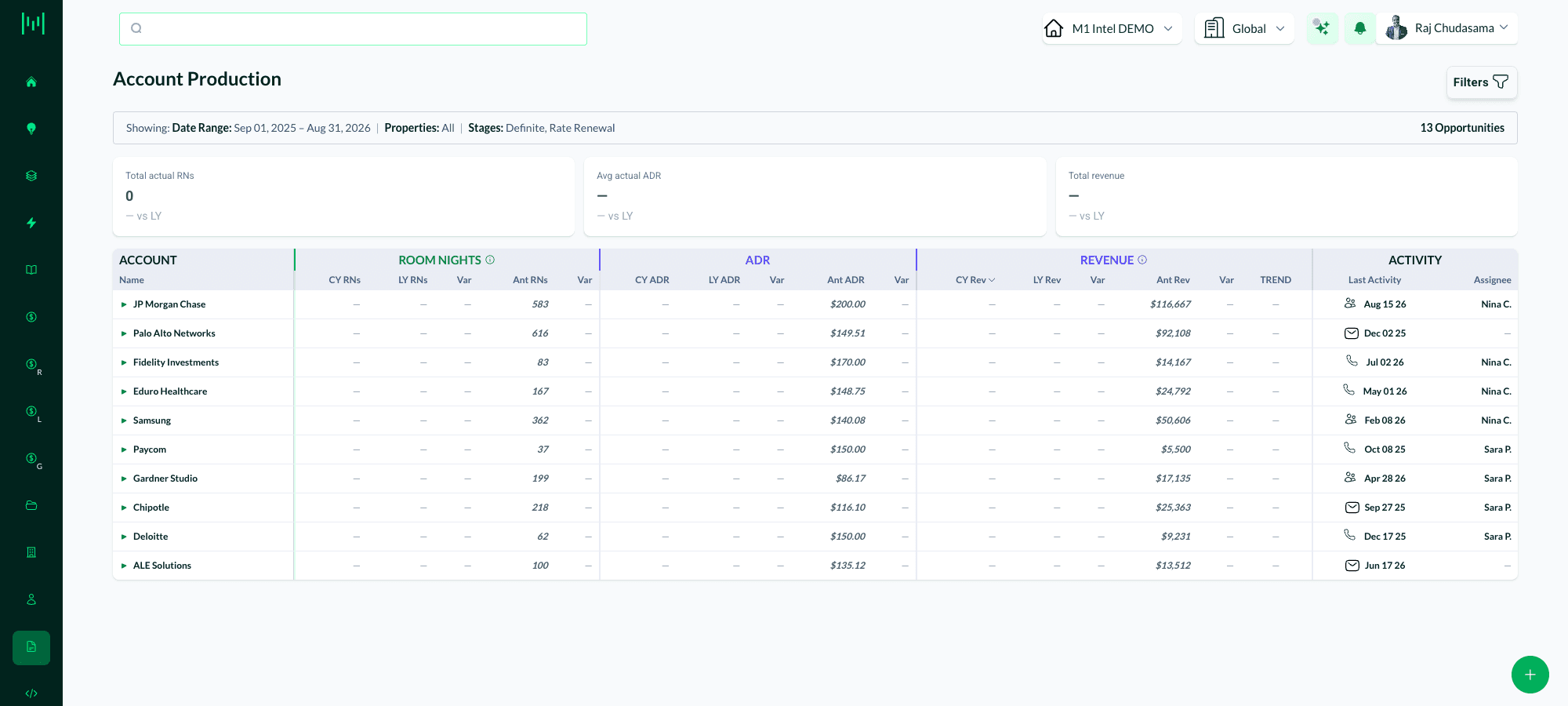
Click the arrow at the start of a row to expand the account and see the opportunities behind the number.
Filters and Stat Boxes
Above the table, three stat boxes summarize the whole filtered set: total actual room nights, average actual ADR, and total revenue, each with its variance against last year.
Filter the report by:
- Property scope: a single property, a portfolio, or all properties
- Date range: a month-and-year range
The current filter state is spelled out above the table, along with how many opportunities are in scope, so you can always see what you are looking at.
Columns are sortable. Click a column heading to sort by it, which is the fastest way to find your worst under-performers.
Reading the Numbers
Blank current-year columns mean no actuals have been entered, not that the account produced nothing. This is the most common surprise when the report is new to a property. The fix is upstream: open the LNR or RFP opportunity and fill in the monthly actuals.
Variance color follows the same convention as Group Rooms Pace: favorable is green, unfavorable is red, and a dash appears where a comparison cannot be made (for example, an account with no history last year).
Accounts holding contracts in more than one currency show a figure per currency, and the variance is suppressed rather than blended, so you are never shown a meaningless mixed-currency number.
How to Use It
Find under-delivery early. Sort by the anticipated-versus-actual variance on room nights. An account well under its contracted volume partway through the year is a conversation to have now, not at renewal.
Bring it to the account review. The auto-generated Account Review activity (see Auto Activities) is the natural moment to pull this report for that account.
Check the last activity date. An under-performing account that also has a stale last-activity date is usually a coverage problem, not a demand problem.
Questions? Email support@m1intel.com