
Overview
Each property has a Taxes & Fees setup that feeds your contracts and BEOs. If it is blank or wrong, the estimated charges and totals on your documents will be wrong. Property Admins should complete this for every property before generating contracts.
What lives here
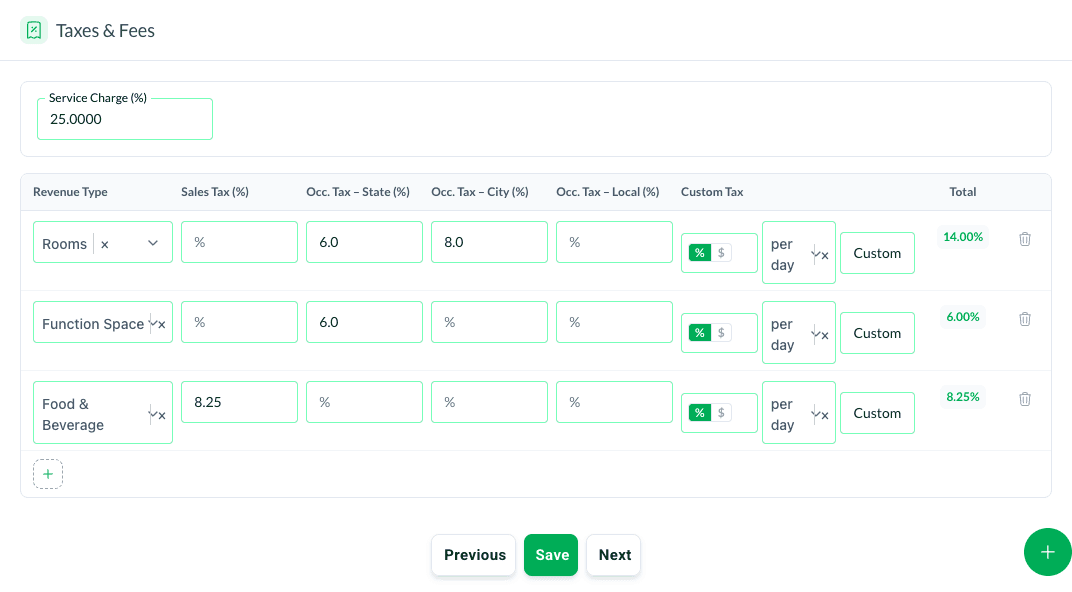
- A Service Charge (%) applied to the appropriate revenue.
- Taxes by revenue type (Rooms, Function Space, and Food & Beverage), including Sales Tax and Occupancy Tax (State, City, and Local).
- A Custom Tax column for charges specific to your property (for example a per-day parking fee, entered as a flat dollar amount).
Why it matters
When you generate a contract or a BEO, Matrix uses these values to calculate the estimated charges the client sees. If the tab is blank, those totals come out low or empty. If a rate is wrong, every document inherits the error. Getting this right once means accurate documents every time.
How to set it up
Go to the property's settings and open the Taxes & Fees tab. Enter your tax rates by revenue type, set the Service Charge, and add any Custom Tax entries your property charges. Save, then generate a test document to confirm the totals look right.
If you are not sure what your rates should be, check with your finance or revenue team, or email support@m1intel.com.
Questions? Email support@m1intel.com