
Overview
Templates let you generate contracts, BEOs, and other documents for your opportunities without rebuilding them each time. You can create a template from scratch, start from an existing Word document, edit a template, or duplicate one.
Template management requires Subscription Admin access. Templates appears in the left sidebar at the Global scope.
Create a New Template
- Open Templates in the left sidebar (Global scope)
- Click + New Template
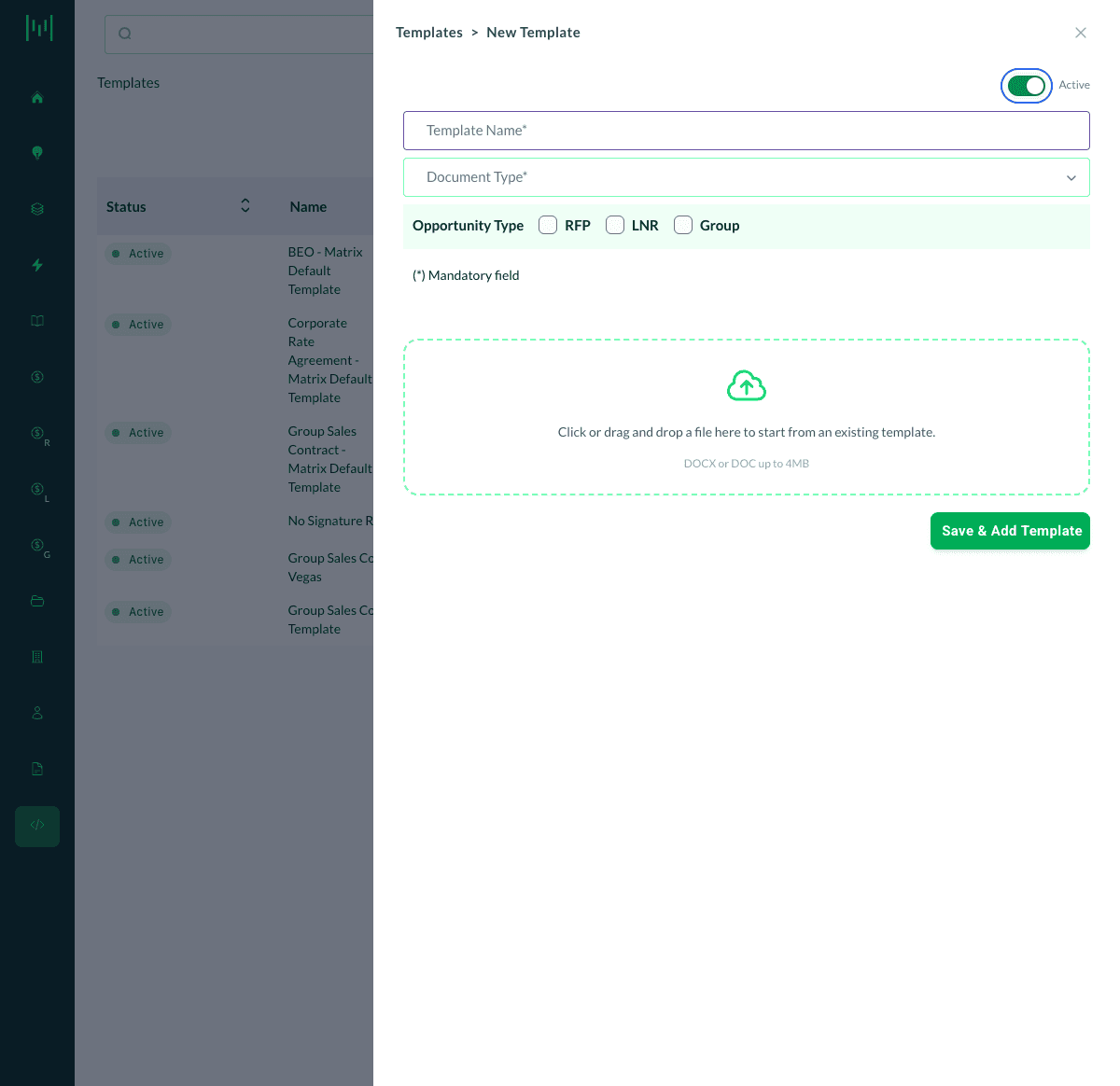
- Enter the Template Name
- Choose the Document Type (for example, Contract or BEO)
- Select the Opportunity Type(s) the template applies to: RFP, LNR, and/or Group
- Click Save & Add Template
Start From an Existing Document
If you already have the document as a Word file, you do not have to rebuild it. On the New Template form, click or drag and drop your file into the upload area (DOCX or DOC, up to 4MB) to start from it, then save.
Edit a Template
- Open Templates
- Click the ellipsis (…) on the template you want to change
- Select Edit
- Make your changes and save
Duplicate a Template
To reuse a template as a starting point, click the ellipsis (…) on it and select Duplicate. (See How to Duplicate a Contract Template.)
Active vs. Inactive
Each template has an Active toggle. Keep a template Active to make it available when generating documents. Turn it off to retire a template without deleting it.
Questions? Email support@m1intel.com