
Overview
Matrix enriches your leads, accounts, and contacts using ZoomInfo. Matrix connects to your own ZoomInfo subscription, so you generate API credentials in ZoomInfo once and paste them into Matrix. Enrichment then runs against your own ZoomInfo credits.
This page covers both halves: creating the API app in ZoomInfo, then entering the credentials in Matrix.
Before You Start
You need:
- A ZoomInfo subscription that includes API access
- Admin access to the ZoomInfo Admin Portal, since Custom Apps is an admin-only area
- The ZoomInfo user who will act as the subscription admin for this connection
If you are not sure whether your plan includes API access, check with your ZoomInfo account representative before you start.
Part 1: Create the API App in ZoomInfo
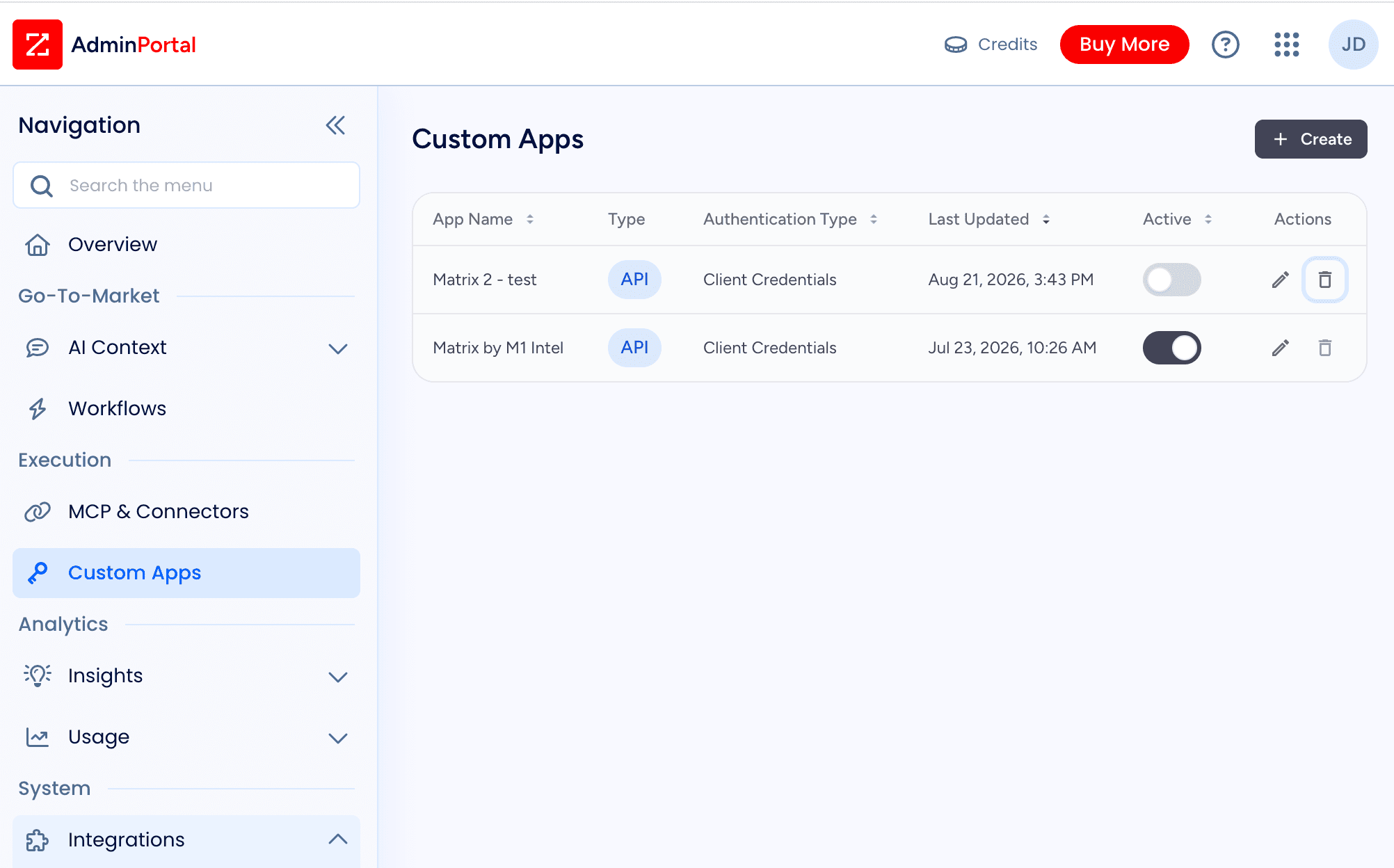
- Sign in to ZoomInfo and open the Admin Portal
- Click Custom Apps in the left navigation bar
- Click + Create
- Choose API App
5. Fill in the app details:
| Field | Value |
|---|---|
| App name | Matrix by M1 Intel |
| Authentication method | Client Credentials |
| Delegated user | Your subscription admin |
| Scopes | Select all scopes |
| Use case | Enrich leads, accounts, and contacts from Matrix |
6. Click Create App.
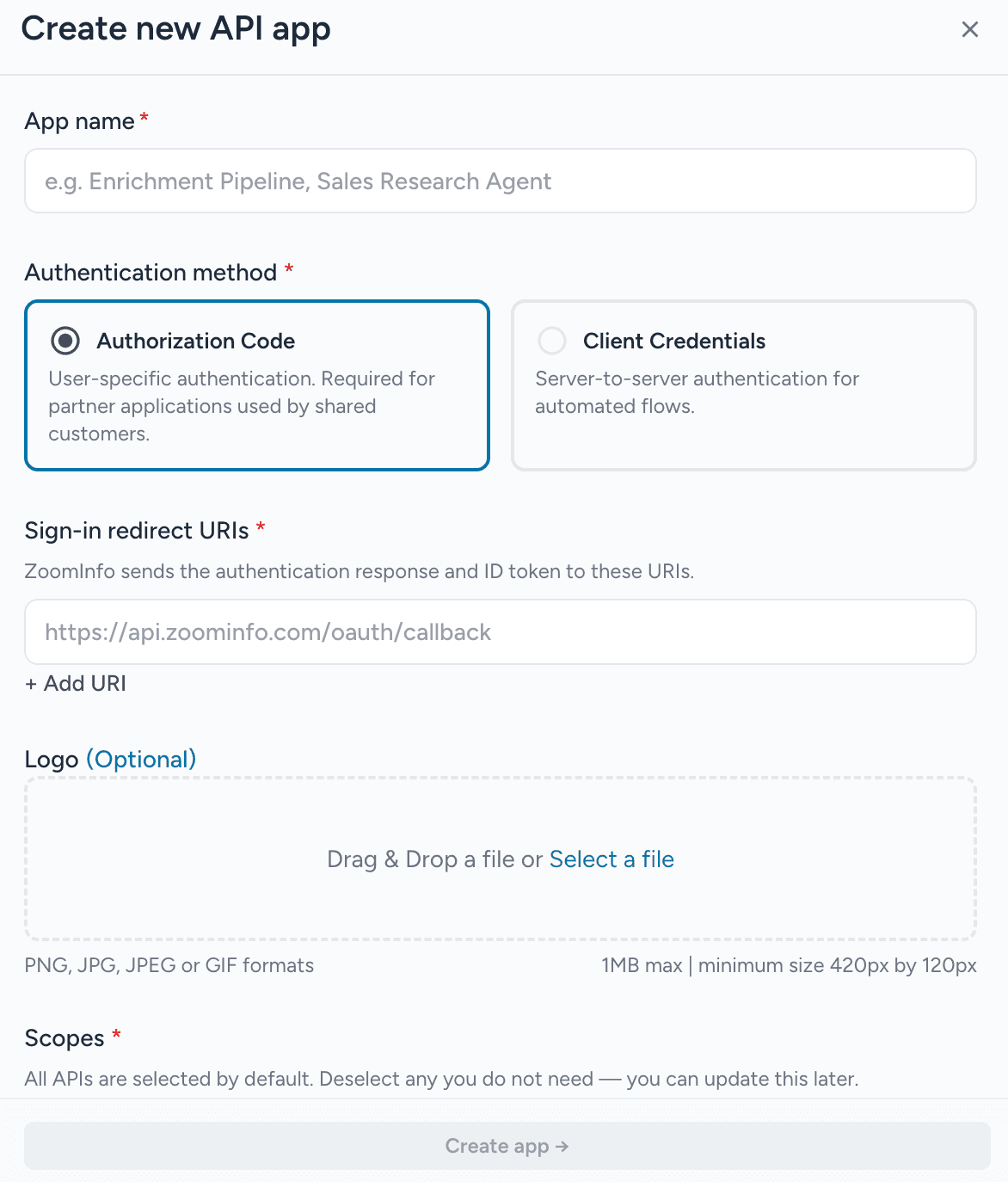
Choose Client Credentials. Matrix connects service to service, so it cannot use an authentication method that expects a person to sign in.
Your new app now appears in the Custom Apps list.
Part 2: Copy the Client ID and Client Secret
- Click the app you just created in the Custom Apps list
- Copy the Client ID
- Copy the Client Secret
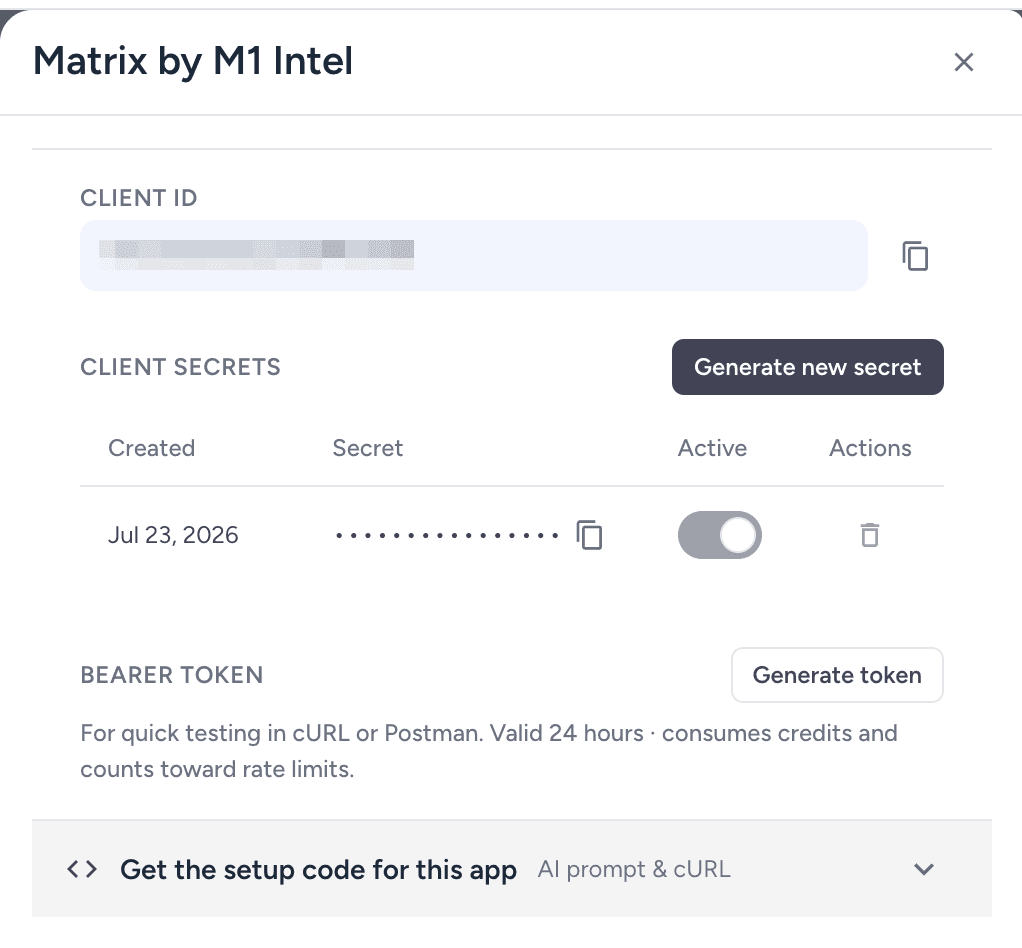
If your app has only one Client Secret, ZoomInfo may not offer a control to mark it active. That is expected, and the credentials still work. Confirm the connection from Matrix with Test Connection rather than looking for an active flag in ZoomInfo.
Part 3: Enter the Credentials in Matrix
- In Matrix, open Properties in the left sidebar
- Select your property
- Open the Integrations tab, step 7 of property setup
- In the ZoomInfo card, paste your Client ID and Client Secret
- Click Save
- Click Test Connection to confirm the credentials work
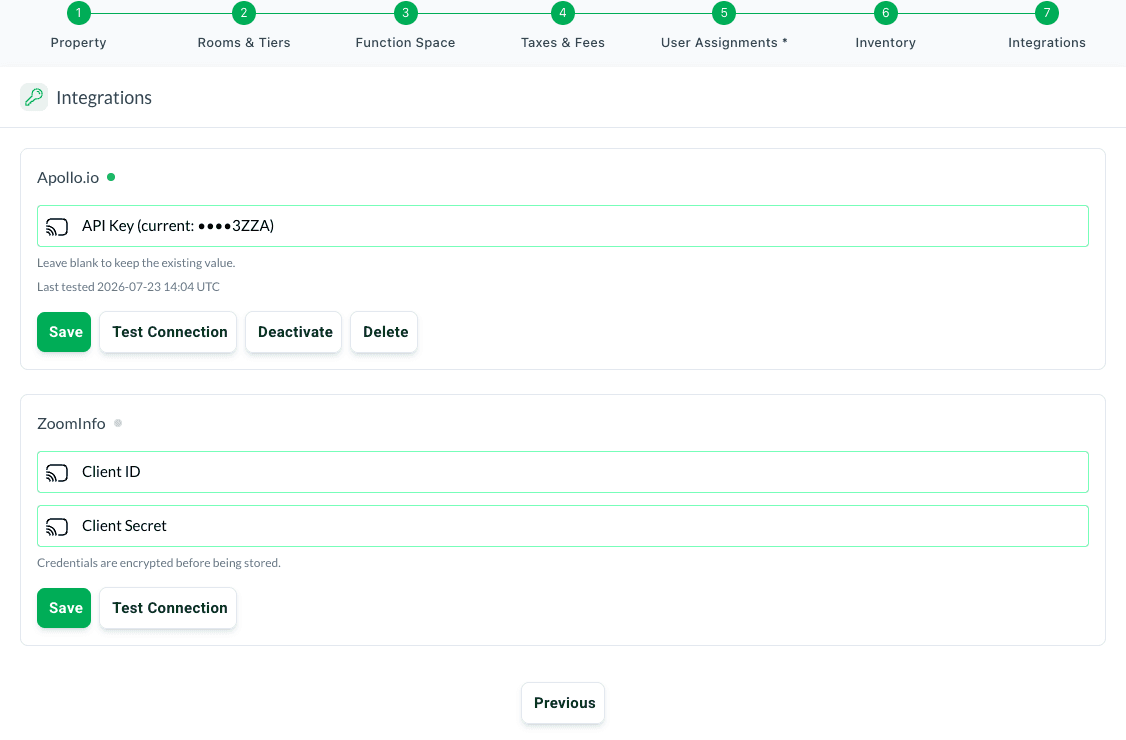
Matrix encrypts the credentials before storing them. A status dot on the ZoomInfo card shows whether the integration is configured.
The Integrations tab also holds an Apollo card, which takes a single API Key rather than a Client ID and Secret. Make sure you are filling in the ZoomInfo card.
Enrichment is now connected, drawing on your own ZoomInfo credits.
Keep the Client Secret Safe
Treat the Client Secret like a password.
- Do not email it, paste it into a chat, or store it in a shared document
- Anyone who has it can consume your ZoomInfo credits
- If it is ever exposed, generate a new secret in the ZoomInfo Admin Portal, then update the value in Matrix and run Test Connection
Troubleshooting
Start with Test Connection. It tells you immediately whether Matrix can authenticate, instead of leaving you to guess from empty enrichment results.
Enrichment returns nothing. Run Test Connection first. If a secret was regenerated in ZoomInfo, Matrix keeps using the value you pasted until you update it, so paste the current secret and save again.
Do not go looking for an active flag. When an app has a single Client Secret, ZoomInfo may not show a way to mark it active. The credentials still work. Test Connection in Matrix is the reliable check.
You do not see Custom Apps in ZoomInfo. That area is limited to Admin Portal administrators. Ask whoever owns your ZoomInfo subscription to grant you access or to create the app for you.
The connection authenticates but results look thin. Re-open the app in ZoomInfo and confirm every scope is still selected. A partial scope set can authenticate successfully and still return very little.
Questions? Email support@m1intel.com