
Overview
A Lead is the starting point for new business in Matrix. Add a Lead whenever you have a new prospect or inquiry that still needs to be qualified. Once you confirm there is real revenue in the market, you convert the Lead into an Opportunity.
You can add Leads two ways: enter them manually (covered here), or let them flow in automatically through your property's Lead Agent email.
Most Leads come in automatically. Each property has a Lead Agent inbound address (shown at the top of the Leads page, e.g.
leads-ardalga@m1intel.co). The .co domain is intentional and is separate from the support address at m1intel.com. Set that address as the lead catcher on your booking platforms and Matrix creates the Lead for you. Use the manual steps below for prospecting or one-off inquiries.
How to Add a Lead
1. Open the Leads page. Click Leads in the left sidebar.
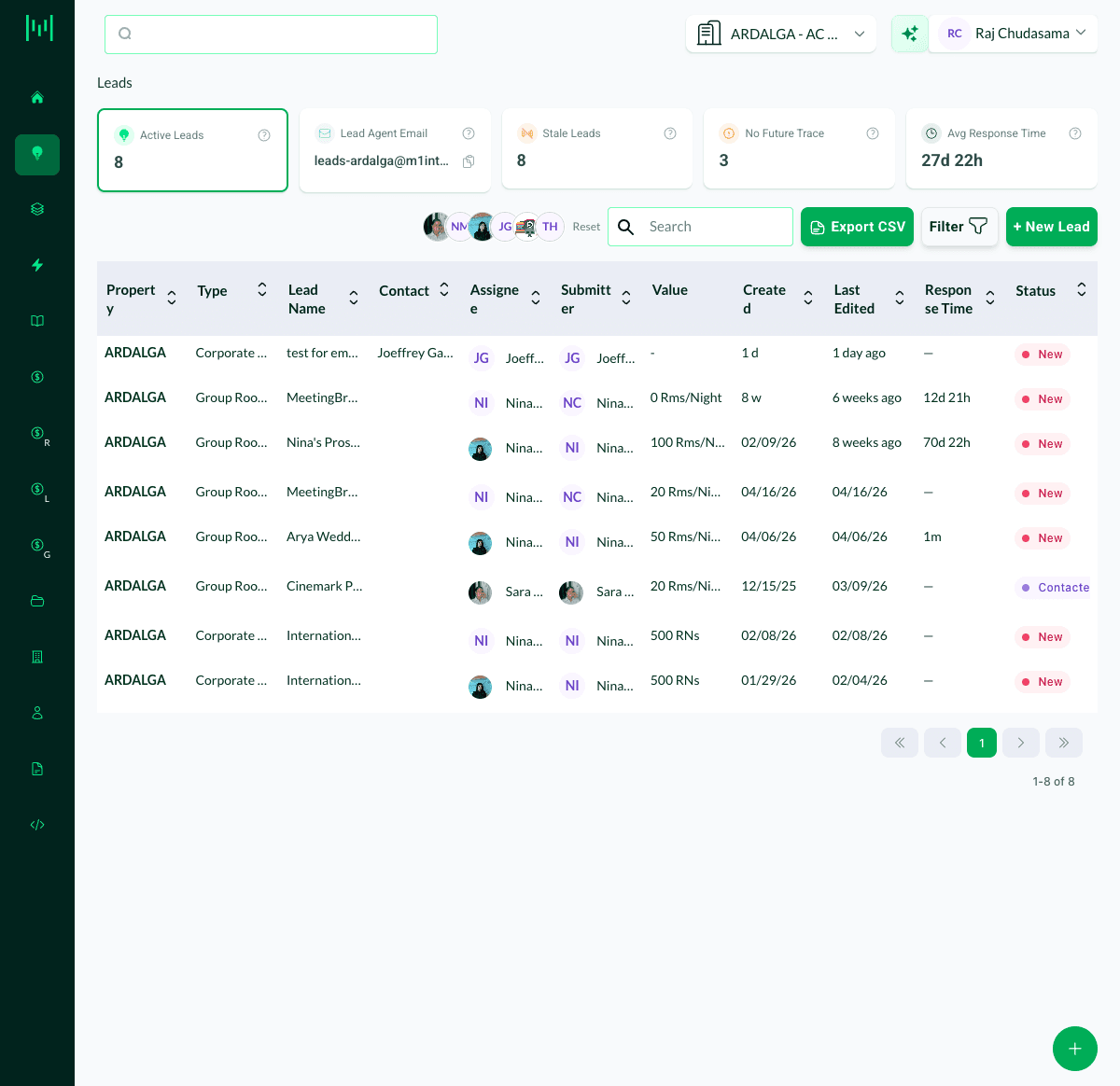
2. Click + New Lead in the top right. The New Lead form opens on the right.
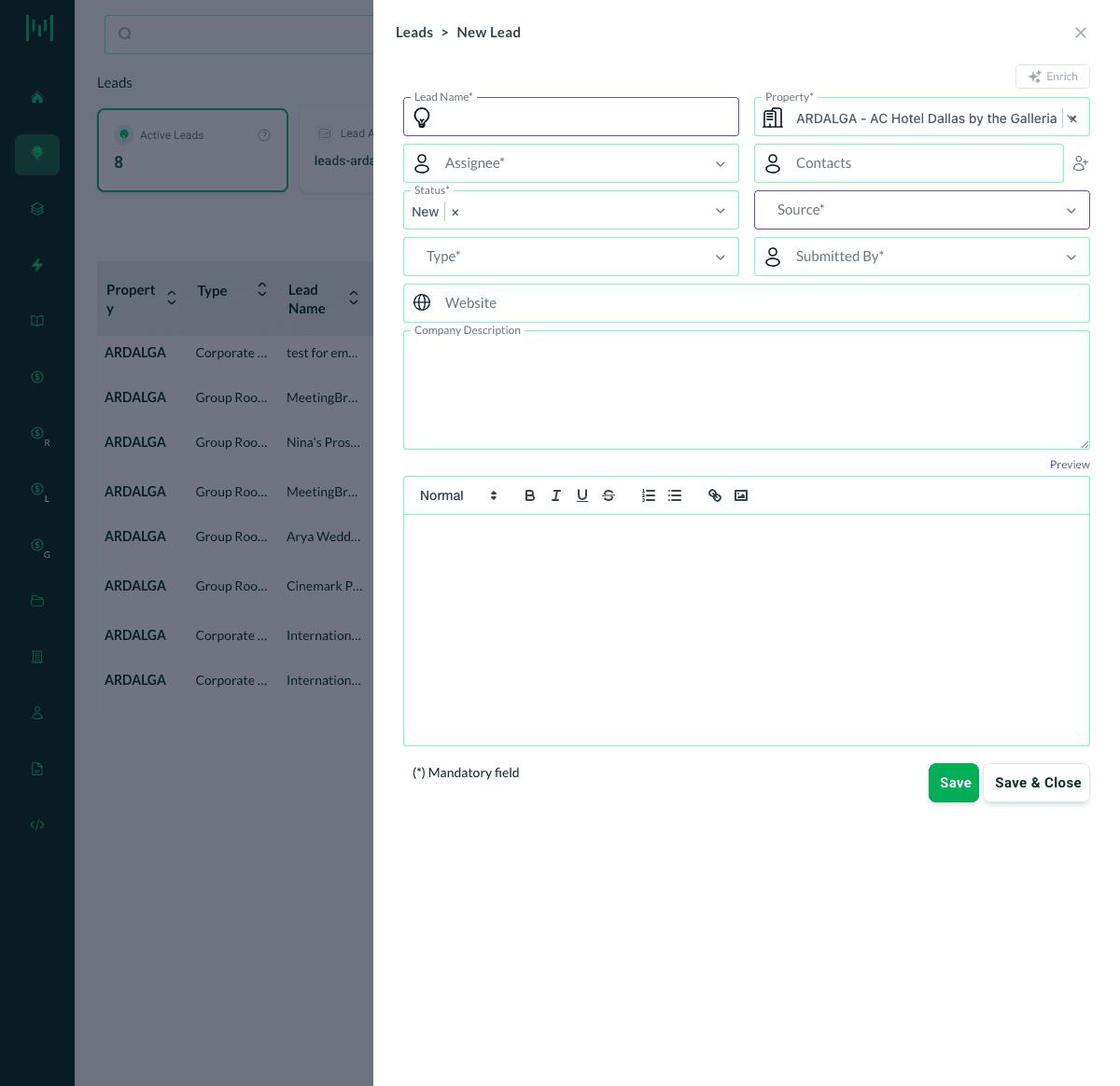
3. Fill in the lead details. The required fields are Lead Name, Property, Assignee, Status, Source, Type, and Submitted By:
- Lead Name: a clear, identifiable name, such as the company plus what they need.
- Property: defaults to the property you are working in.
- Assignee: the salesperson who will work the Lead.
- Status: defaults to New.
- Source: where the Lead came from.
- Type: the kind of business, such as Group Rooms or Corporate Rate.
- Submitted By: who submitted the Lead.
You can also add optional Contacts, a Website, and a Company Description.
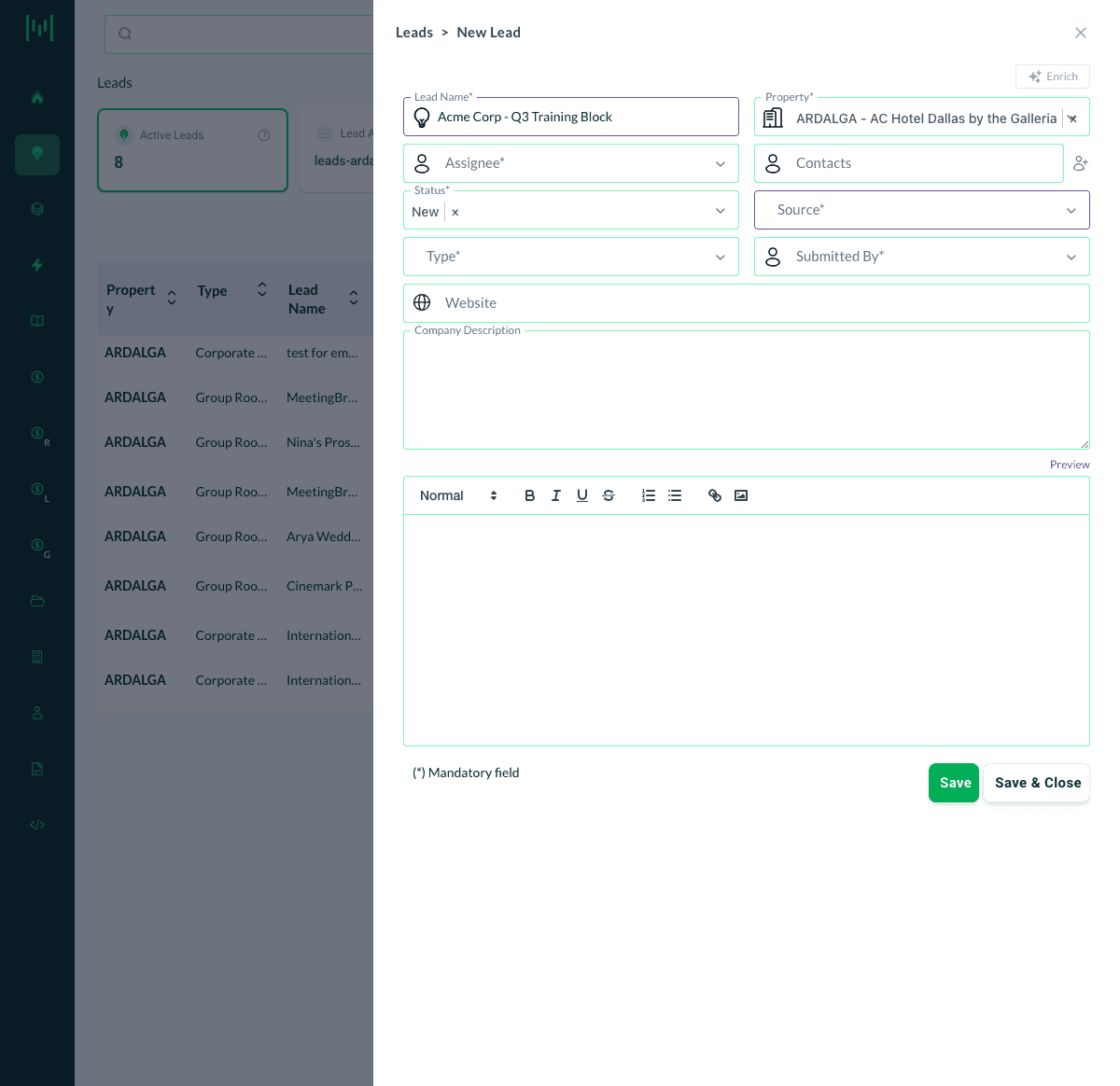
Tip: the Enrich button (top right of the form) can auto-fill company details from a website, saving you manual entry.
4. Save the Lead. Click Save to keep the form open, or Save & Close to save and return to the Leads list. Your new Lead now appears in the Leads table with a New status.
Best Practice
After creating a Lead, trace a next step by adding a future activity so it does not stall. Matrix flags Leads with no future activity under No Future Trace, and a Lead with no completed activity for 10 days shows up as Stale. Keep the Lead in Lead status while you qualify it, then convert it to an Opportunity once you confirm there is revenue in the market.
Questions? Email support@m1intel.com