
Overview
Activities are how you record every sales touch in Matrix: calls, emails, client meetings, notes, and tasks. Logging them keeps your pipeline current and your reports accurate, and it preserves the history of every relationship.
How to Add an Activity
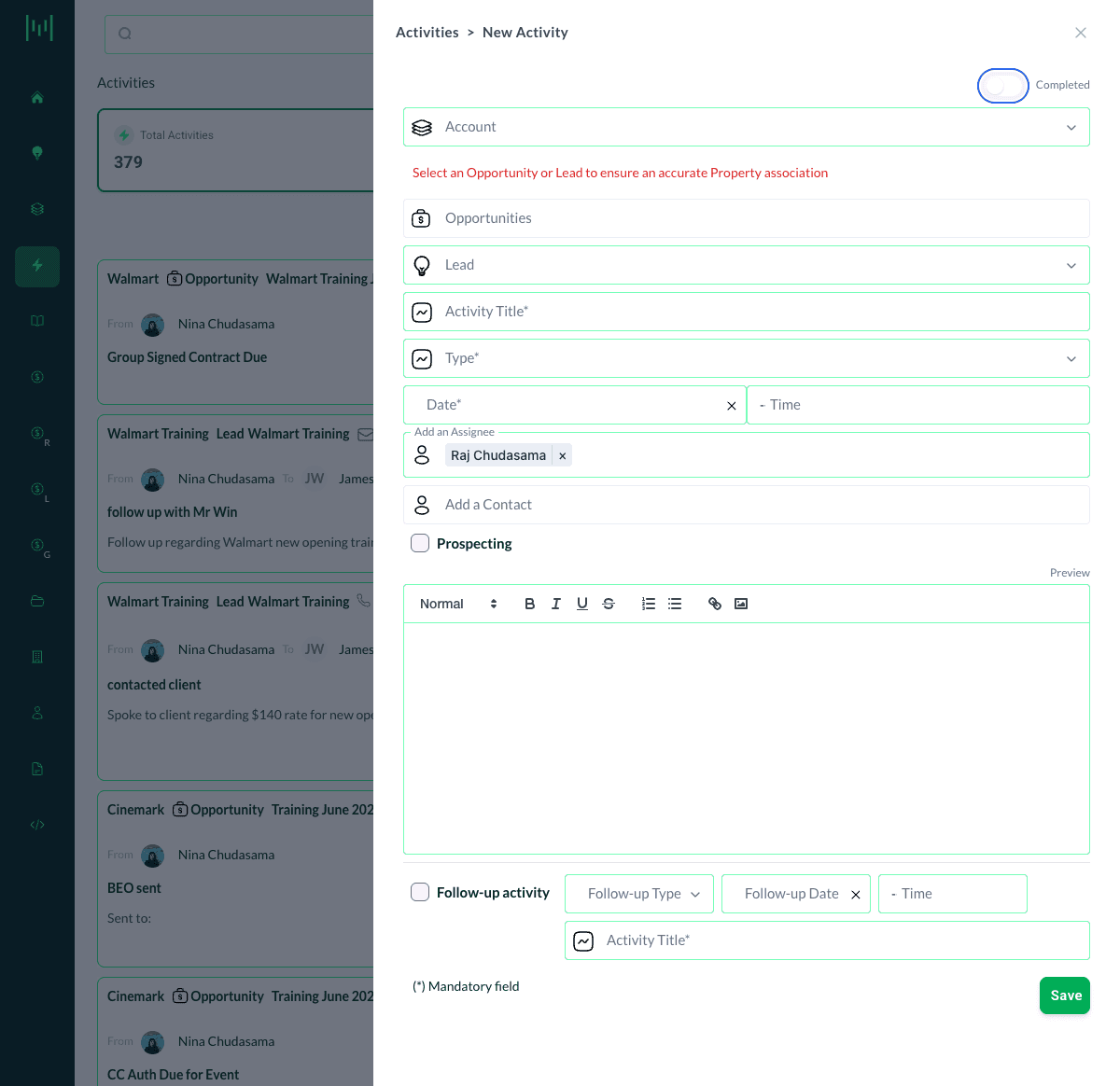
- Click + New Activity (top right of the Activities page, or the New Activity button elsewhere in Matrix)
- Associate the activity. Set the Account, and importantly the Opportunities or Lead it relates to. Matrix warns you to "Select an Opportunity or Lead to ensure an accurate Property association" because activities only roll up to a property's reports when tied to a Lead or Opportunity.
- Enter the Activity Title
- Choose the Type: Email, Phone Call, Client Meeting, Note, or Other Activity
- Set the Date (and Time if relevant)
- Confirm the Assignee, and Add a Contact if you interacted with a specific person
- Add your details in the text box (include results and next steps)
- Click Save
Only the Client Meeting type appears on the Property Calendar. Use it for scheduled client-facing meetings.
How to Complete an Activity
When the activity is done, mark it complete:
- Open the activity
- Turn on the Completed toggle (top of the activity)
- Make sure your results and next steps are recorded in the details
- Save
Completed activities are what The Sales Readout and property reports count.
Trace Your Next Step
While creating or completing an activity, use the Follow-up activity section at the bottom: check it, then set a Follow-up Type, Follow-up Date, and title. This schedules your next action in one step, so the Lead or Opportunity always has a future activity traced.
Best Practices
- Always record results and next steps in the activity details.
- Always trace a future activity so nothing stalls.
- Associate to the Opportunity or Lead, not just the Account, so the activity counts for the property.
Questions? Email support@m1intel.com